The University partners with Respondus to provide a lockdown browser*, via our Learning Management System (D2L/Brightspace) for our faculty and students.
As a faculty member, you may require that your students use this lockdown browser on any assessments that you deploy via the Quizzes tool only in D2L/Brightspace. Please use the quick steps below as a guide to add lockdown browser requirements to your Brightspace assessments.
(*NOTE: The University's version of LockDown Browser does not include Respondus Monitor, the remote proctoring function).
quick links
| What is a Lockdown Browser? |
| How to set up the LockDown Browser |
| How to review assessment results |
| Further Resources |
Need further help configuration and using LockDown Browser in your class?
Contact your Faculty Technology Coordinator
Reach out to our Help Desk
What is a lockdown browser?
A lockdown browser is a unique Internet browser that is a deterrent (not a fix) against academic dishonesty for the students in your classes. The browser is a standalone application that students may download to their own machines, or use on Sewanee's computer labs, in order to take an assessment that you deploy through Brightspace. The application functions similarly to the web-browsers we are familiar with (Safari, Edge, Chrome, Firefox) with the exception that students are "locked" into only viewing the Brightspace page with the exam, test, or quiz.
what does a lockdown browser do for my students?
- Assessment are displayed full-screen and cannot be minimized
- Browser menu and toolbar options are removed, except for Back, Forward, Refresh and Stop
- Prevents access to other applications including messaging, screen-sharing, virtual machines, and remote desktops (only on the device the student is using to take the assessment)
- Printing and screen capture functions are disabled
- Copying and pasting anything to or from an assessment is prevented
- Right-click menu options, function keys, keyboard shortcuts and task switching are disabled
- An assessment cannot be exited until the student submits it for grading
- Assessments that are set up for use with LockDown Browser cannot be accessed with other browsers
how to set up the lockdown browser (video tutorial)
how to set up the lockdown browser (Faculty instructions)
The steps for setting up and using the Respondus LockDown Browser in your Brightspace course requires two simple steps for faculty members.
Step One: Create your Brightspace assessment using "Quizzes"
The first step is to create your assessment in Brightspace. Start this process using the Quizzes tool from your navigation bar in your course page on Brightspace, and then click New Quiz:
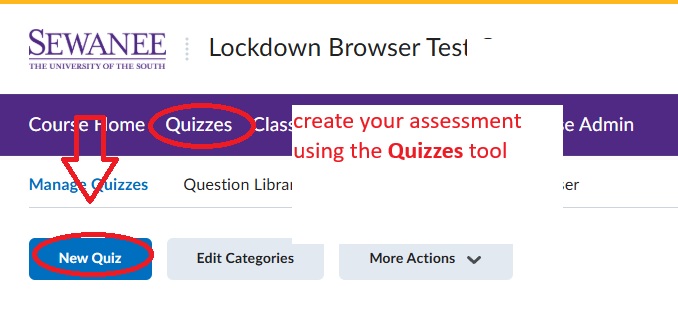
When creating your quiz, be sure to write clear instructions to your students, review all the questions you've input, and set time-limits and/or special access conditions for your students:
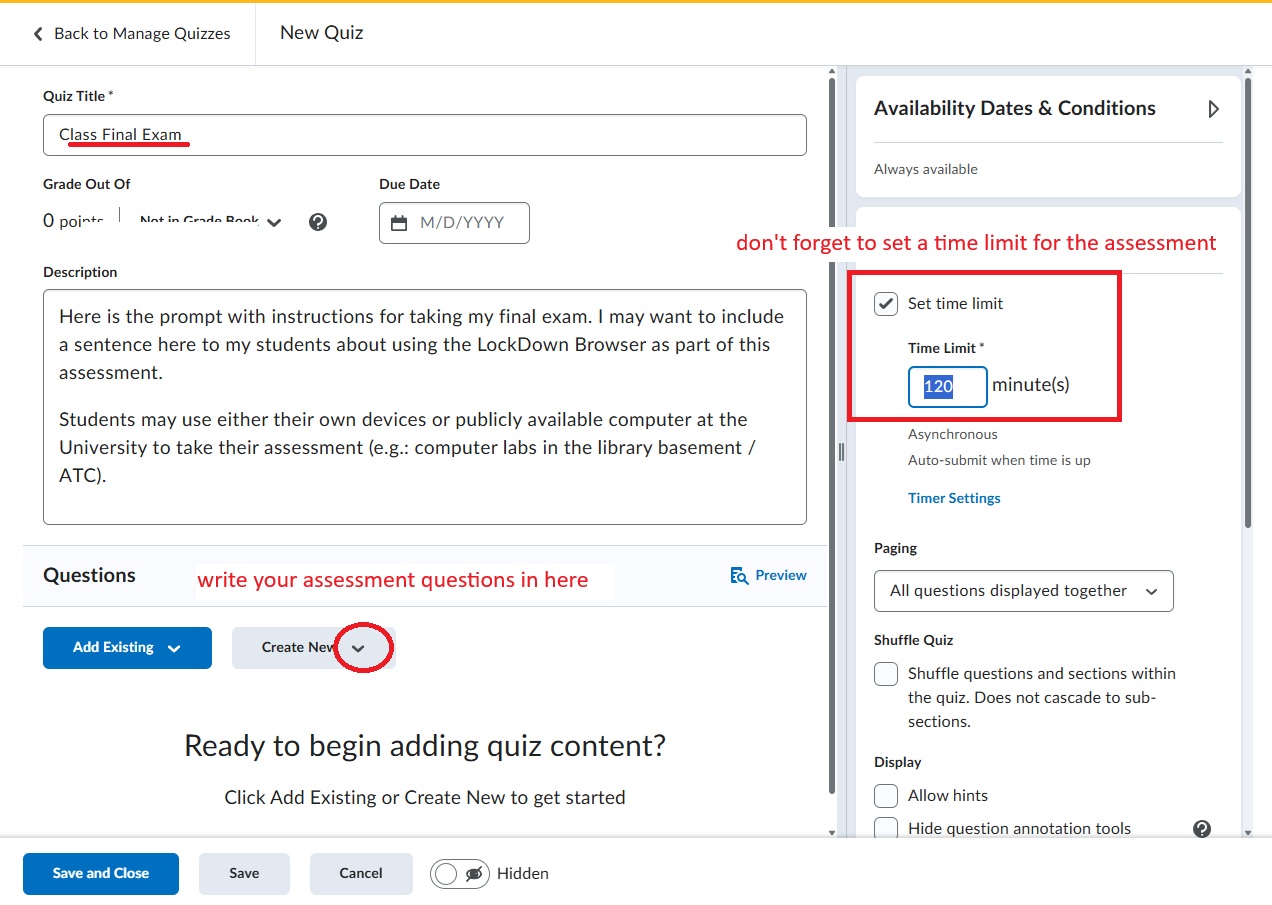
Step Two: Require the lockdown Browser and configure settings
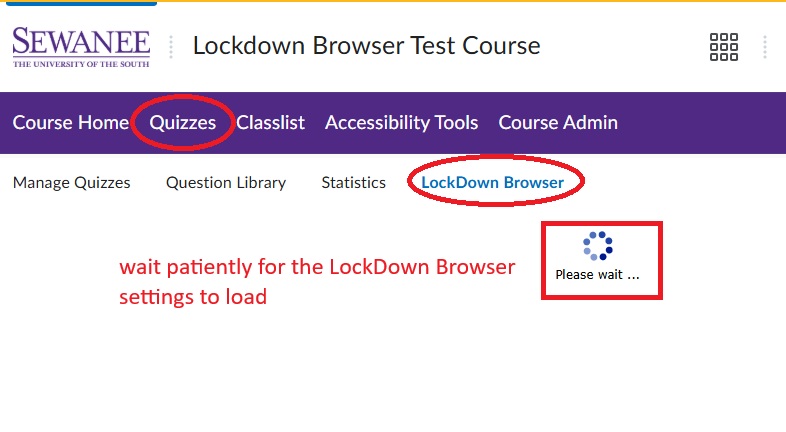
Once you've created your assessment using the Quizzes tool, click back on the tool, and then click on LockDown Browser to access the browser settings for your quizzes:
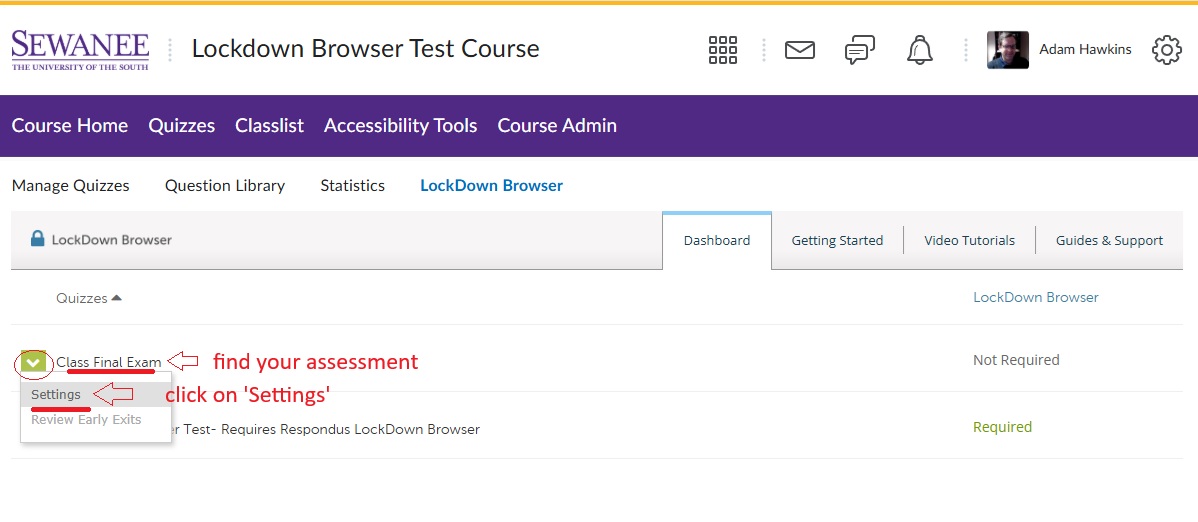
Once the Respondus LockDown Browser dashboard loads, find your assessment, click the down arrow, and click on Settings:
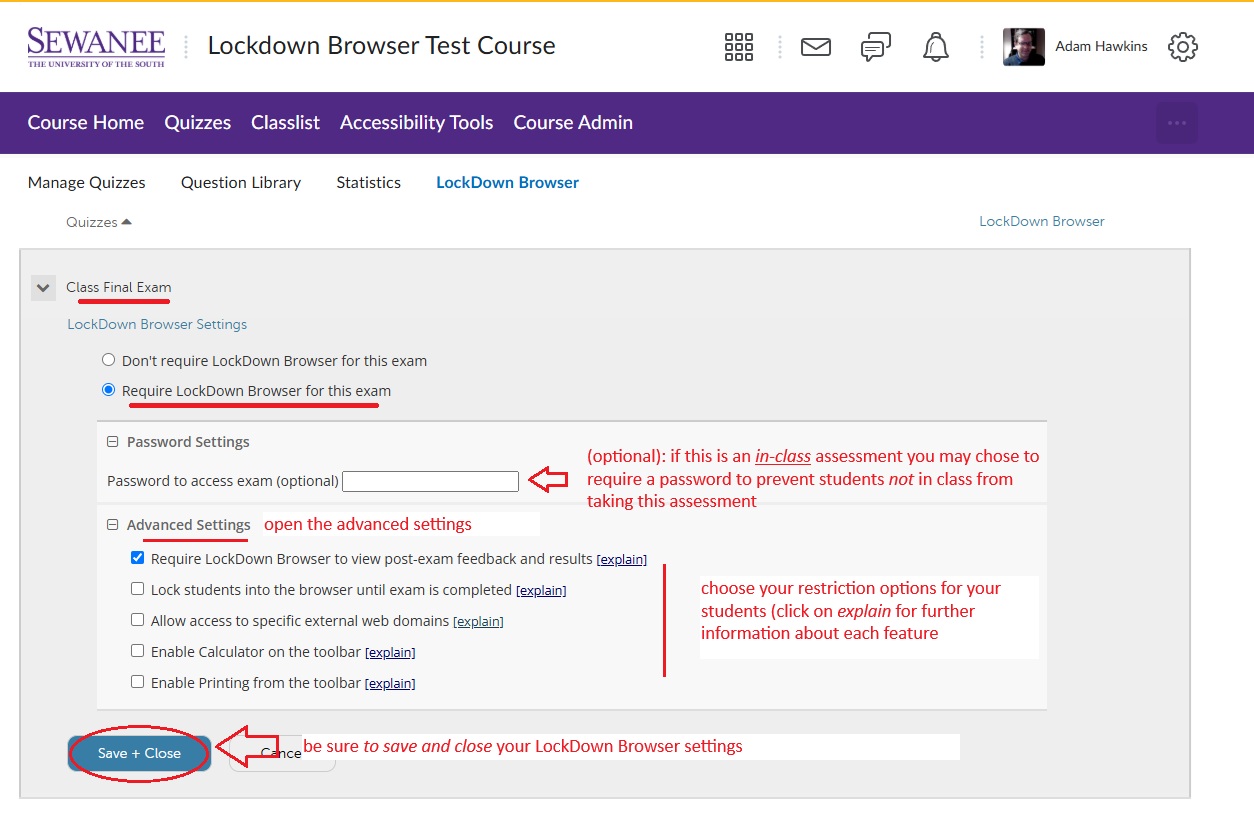
An expanded window will open where you can choose the LockDown Browser configuration for this particular assessment. Configure all your settings as desired, and then click Save + Close:
You may verify that your assessment requires students to use a LockDown Browser from the Quizzes menu:
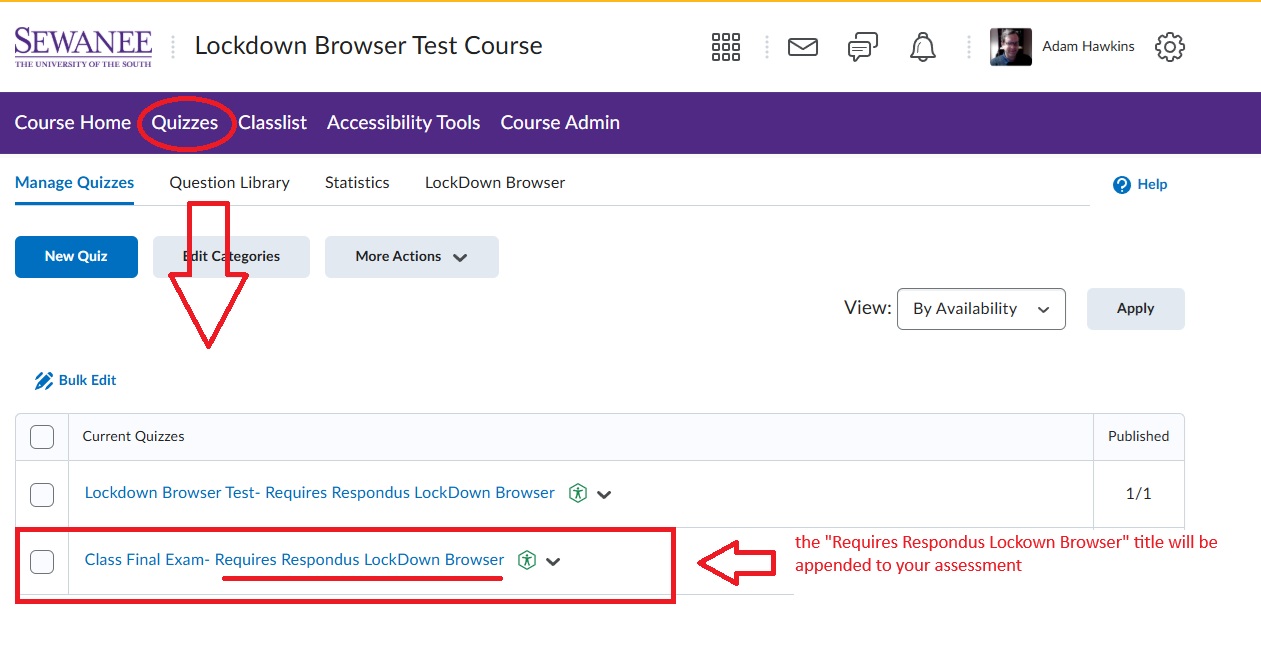
You may "preview" your Quiz as well to test and see if the LockDown Browser is working.
reviewing your lockdown browser results
After your students have completed the assessment, you may view and grade their submissions, or see their results, just as you normally do in Brightspace:
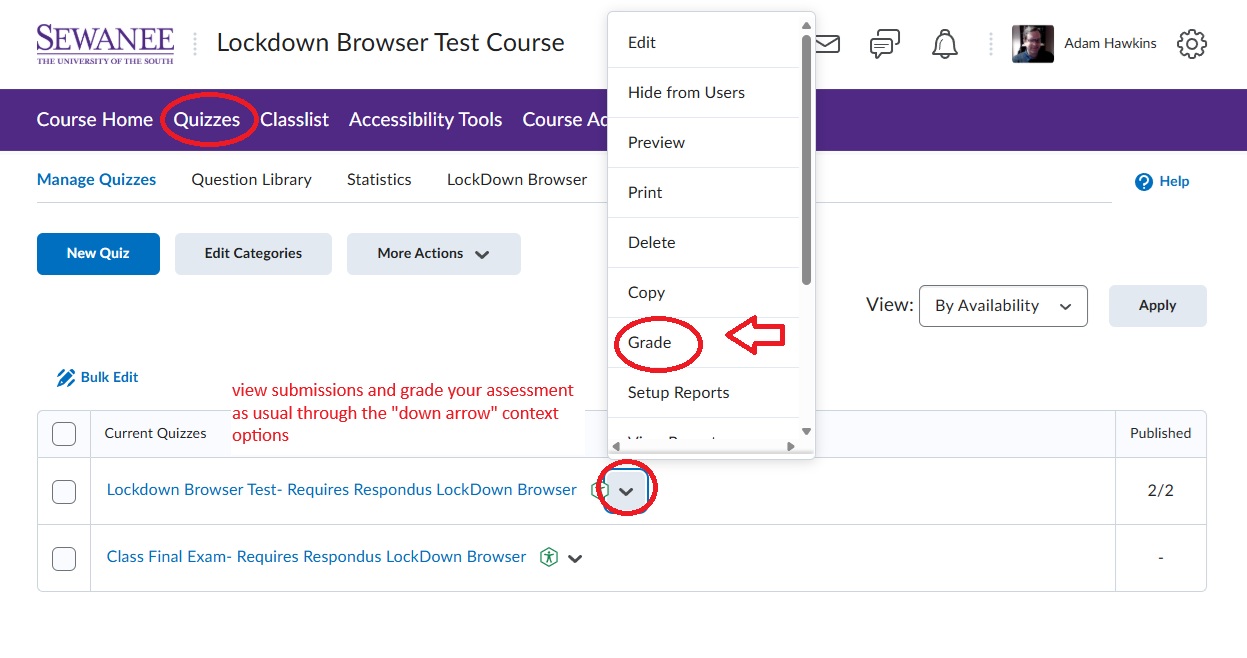
However, there is a separate window with LockDown Brower notifications that you may review. You will not receive any notifications via email or Brightspace of exam disruptions via LockDown Browser. Instead you must manually review your LockDown Browser events from the dashboard via Quizzes:
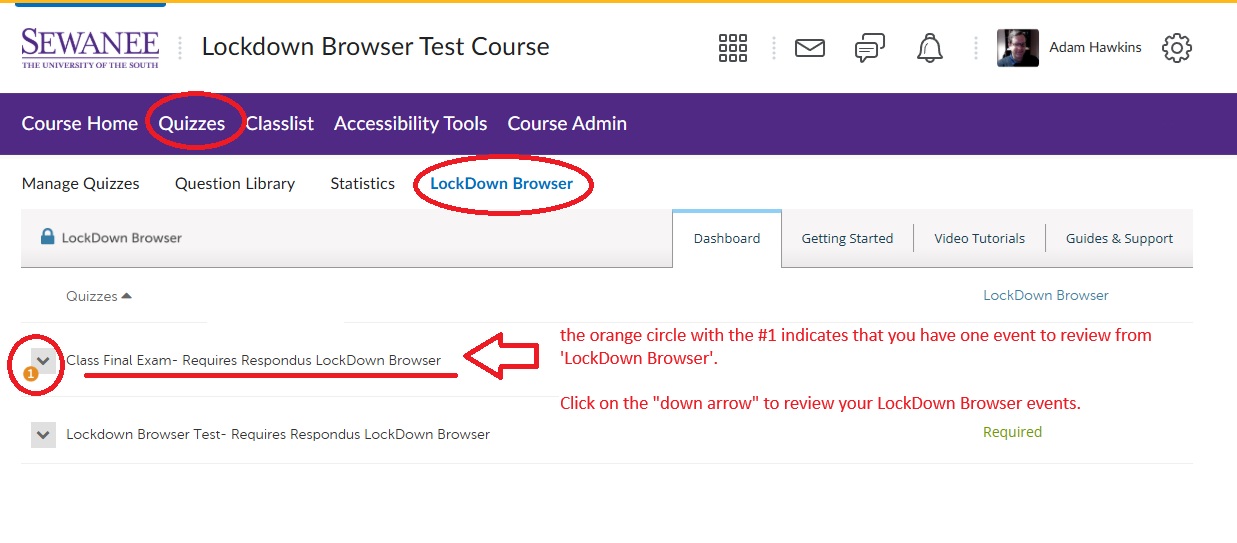
Upon clicking on the down arrow next to your assessment title, you may review any LockDown Browser recorded events by clicking on them:
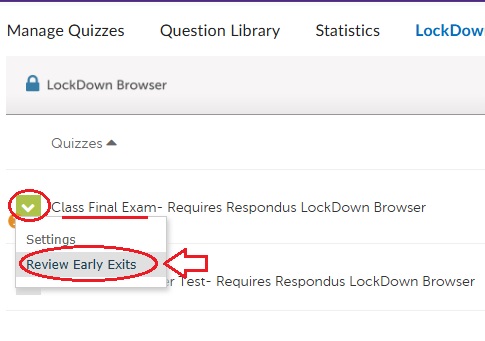
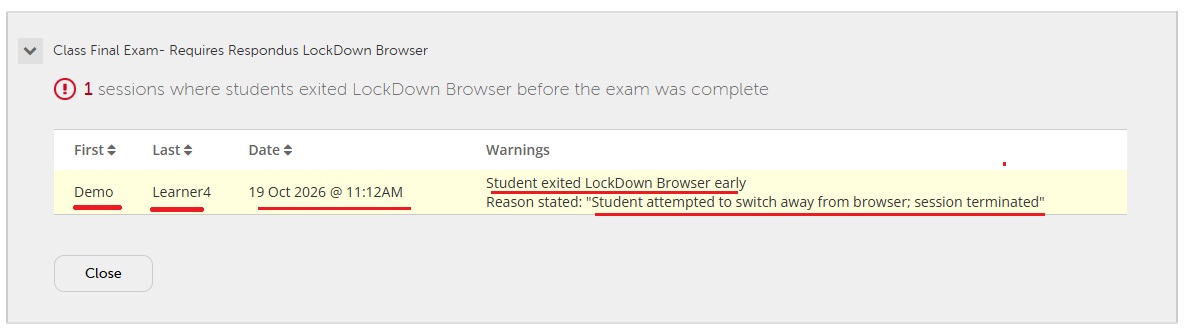
All the events related to this specific assessment will be listed, along with students names, for your records and your review:
further resources
| Respondus LockDown Browser Video Tutorials |
| Respondus LockDown Browser Information Page |
| Creating Quizzes in Sewanee's Brightspace |
| Contact your Faculty Technology Coordinator |