The University partners with Respondus to provide a lockdown browser*, via our Learning Management System (D2L/Brightspace) for our faculty and students.
As a student, your Professor may require that you use this lockdown browser to take an assessment* through the Quizzes tool in Brightspace. You may use the two brief guides below as a reference for using this browser properly.
(*NOTE: We always recommend that students use a campus computer (i.e.: in duPont Library), instead of persopnal devices, for digital assessments at Sewanee. Campus computers will already have the LockDown Browser installed and will be fully updated and test for functionality before you being any test.)
lockdown browser video tutorial
lockdown browser student instructions
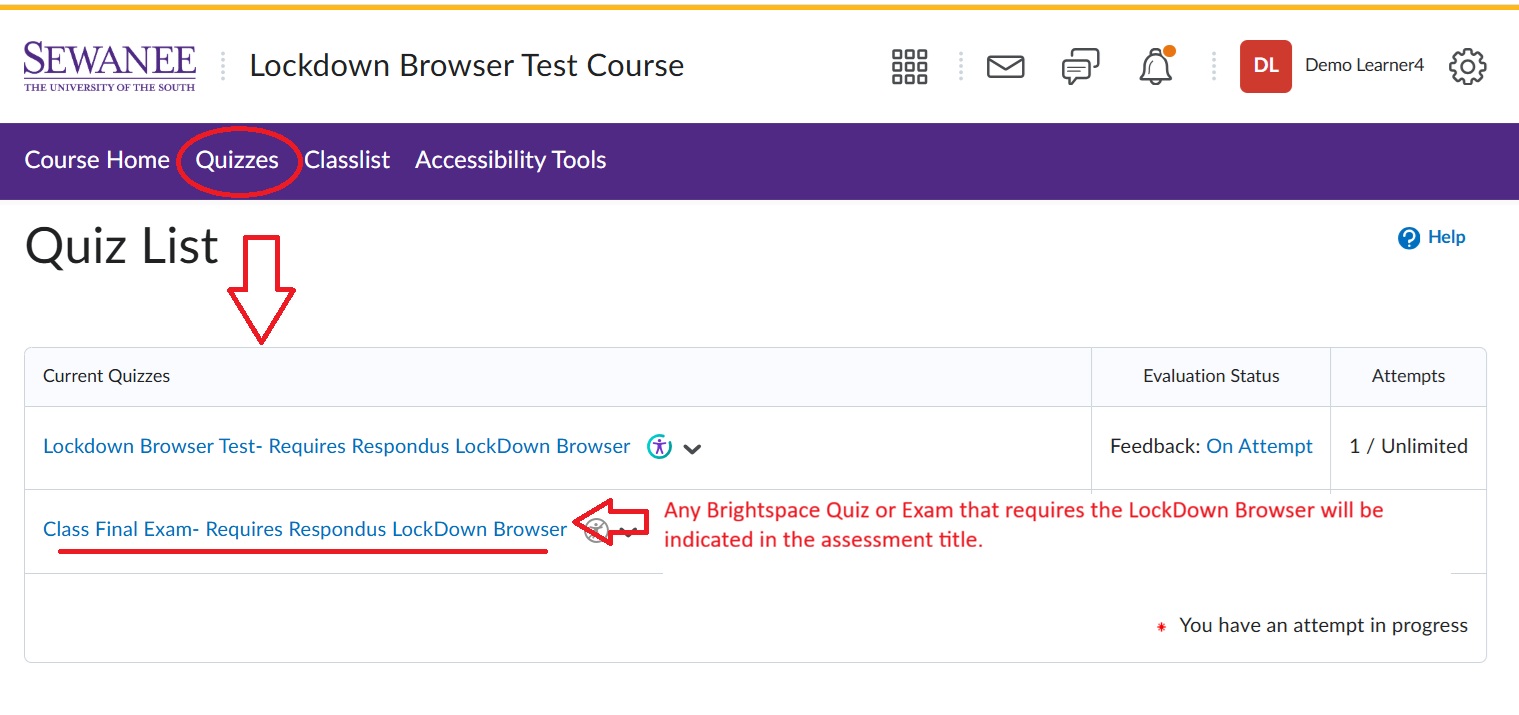
To properly use the LockDown Browser for your Brightspace test, quiz, or exam, first navigate to the Quizzes tool in your Brightspace course via the Navigation Bar.
If your professor as required the use of the LockDown Browser for any assessment, it will be listed in the title:
Once you've clicked on your assessment, you may either (1) follow the link to install the LockDown Browser on your device, and (2) launch your assessment with the browser installed:
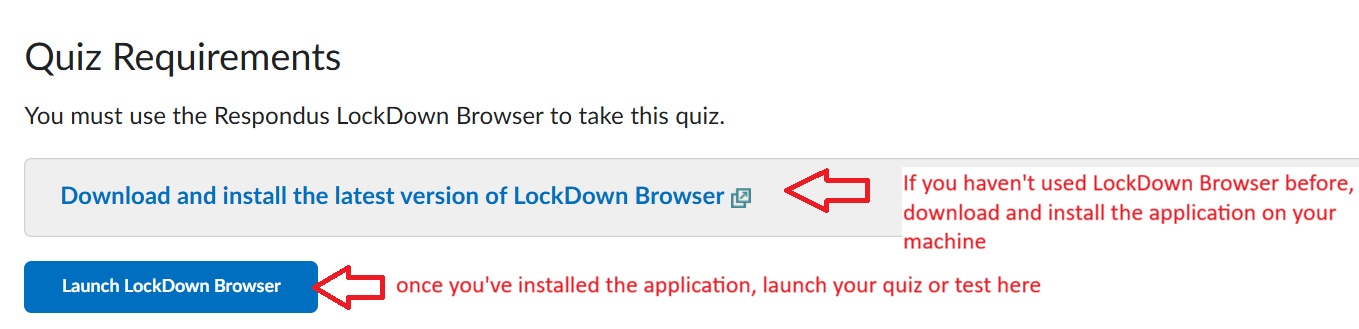
Once the browser loads, you will be prompted to close any running programs necessary, and then you may take your assessment.
Problems with the LockDown Browser in Brightspace?
Visit our Help Desk
helpdesk@sewanee.edu
931-598-1366