As part of your University Google Workspace account you'll find that Google's Gemini AI features extend across a number of their products and platforms including Google Mail, Docs, Drive, Slides, Forms, and more. Below you may find a list of features that may help you use Google Geminin appropriately for your University work.

Turn Google Smart Features On/Off Google docs - turn off Gemini suggestions Google Slides - turn off smart compose features

Toggling google gemini on/off in your workspace account

Google currently allows users to individual control their Gemini experience across their product suite. To toggle these features on or off, follow the steps below:

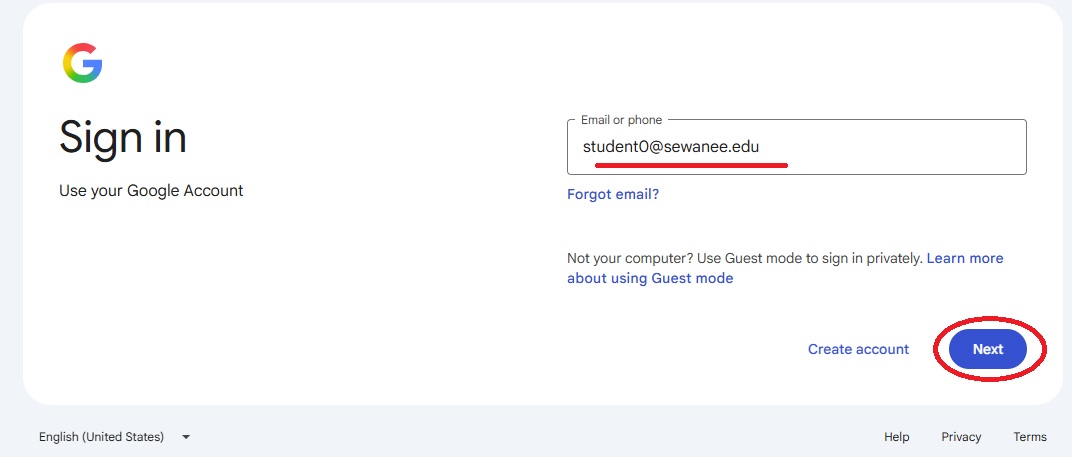
Login to your Gmail account at: mail.google.com

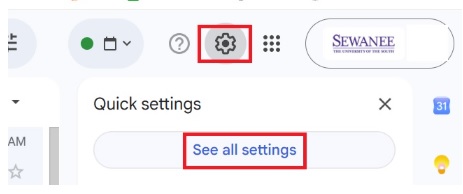
From within your mail account, click on the gear icon in the top right, and choose see all settings from there:

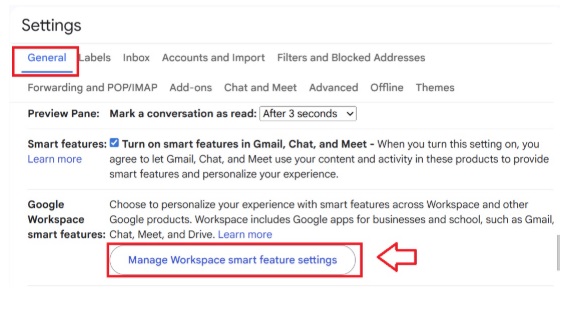
In your Google settings, choose the General tab at the top and scroll down to Google Workspace smart feature settings:

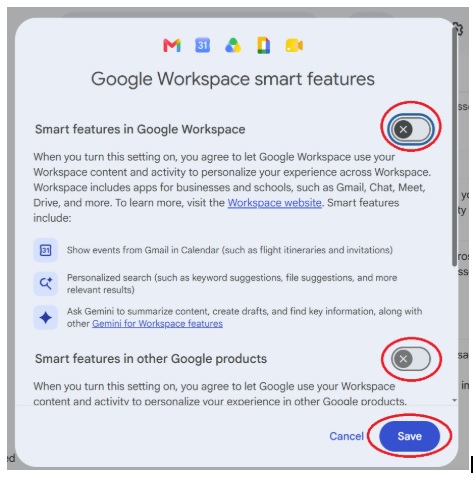
Clicking on the settings will pop up this window, which allows you to toggle on/off Google's smart features, including Gemini assistance:


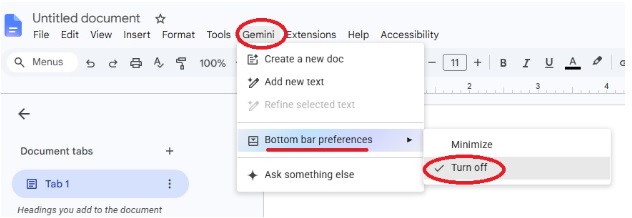
TURN OFF Gemini suggestions in google docs

When you open Google docs, you may be prompted by the Gemini assistant for help with writing. If you do not want to utilize AI at all as you compose, you can turn off this feature using the following menu button from any document:


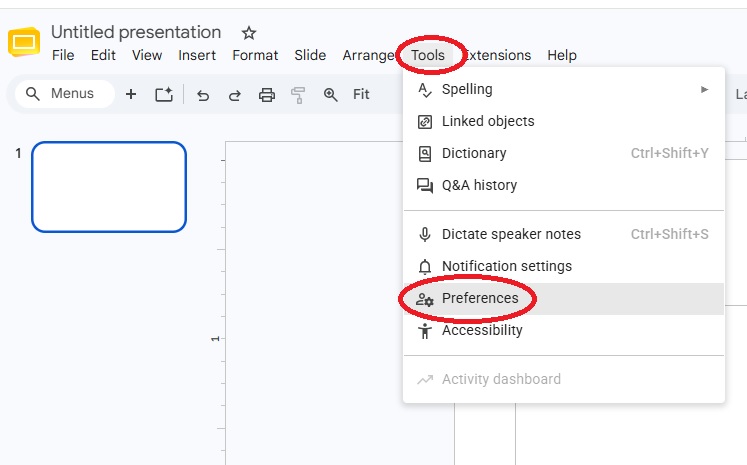
TURN OFF smart compose in google slides

When you open Google slides, you may be prompted to work with AI assistance in your slides. In order to disable those specific features in Google slides, first go to Tools--->Preferences from the menu at the top:

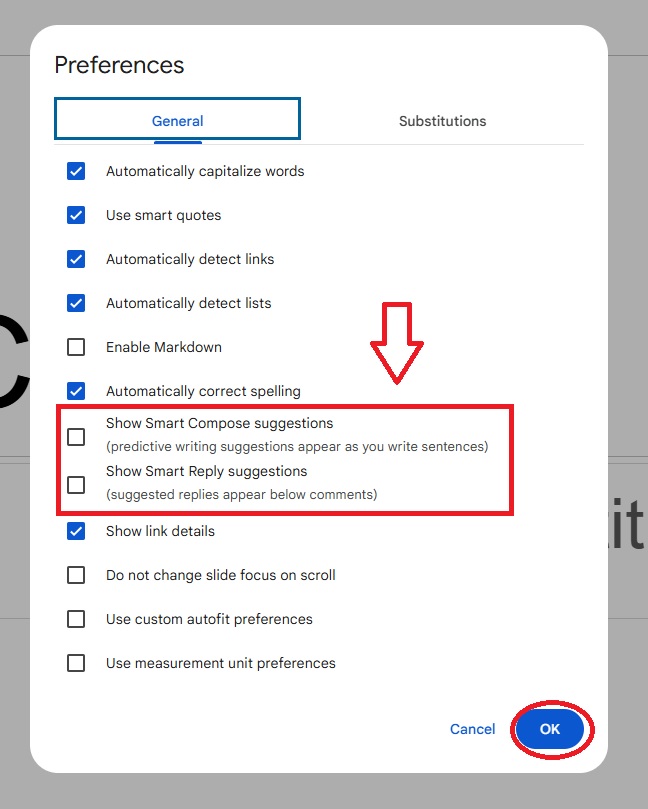
From the General tab, uncheck the smart compose and smart reply options to disable Gemini writing suggestions in Google Slides.


Have a question about Google Gemini Features?
helpdesk@sewanee.edu
931-598-1369