What is Slido?

Slido allows instructors to add questions, polls, and other activities to to presentations created in Google Slides or PowerPoint. When an activity is created, a QR code and link are automatically added to each activity slide, allowing students answer in real time. Each activity supports up to 100 participants, and each slide deck is limited to three activities. However, there is no limit to the number of slide decks you can create in a day.  

Note: If you plan to use Slido with PowerPoint, Slido must be downloaded on the computer you will use to present. This means that if you are presenting from a classroom computer, Slido must be installed on that computer as well as on the computer used to create the slides.


Instructions

How to Create an Account 
  1. Go to slido.com 
  2. Click "Sign Up"
  3. Sign in                                                               
Powerpoint 

Downloaded Slido 
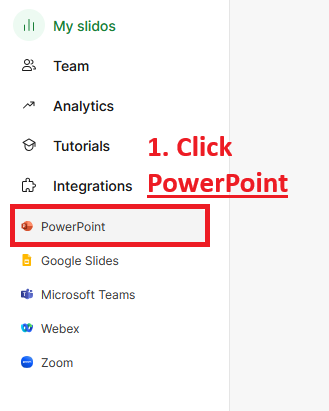
  1. Click on "PowerPoint," located on the left side of the screen under "Integrations."
  2. In the drop-down menu next to "Download," select the type of computer you have: "Windows" or "macOS."  
  3. Click "Download"
  4. Follow the instructions on the page you are taken to after clicking "Download."
Create slido activities
  1. Open PowerPoint 
  2.  Click the S in the green circle labeled "Slido." It should be located under the "Home" tab.
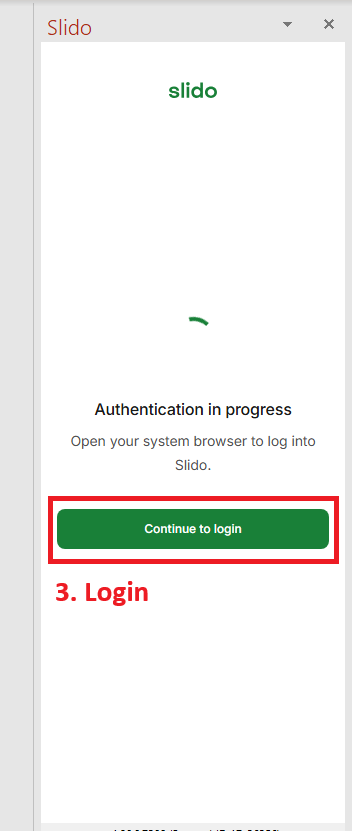
  3. Login to Slido                                                                                                                       
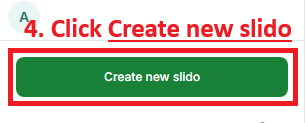
  4. Click "Create new slido"                                                                                           
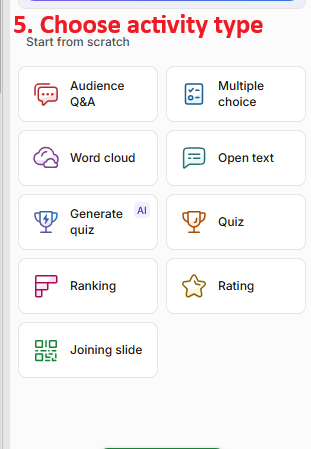
  5. Chose activity type                                                                                     
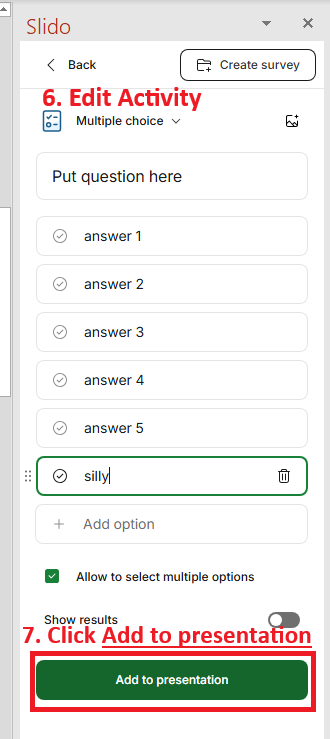
  6. Edit activity 
  7. Click "Add to presentation"                                                                                          

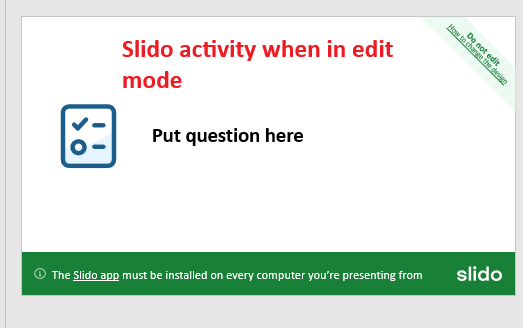
Note: The full activity is only visible in presentation mode. In edit mode, slides with a Slido activity are marked by an icon showing the activity type.                                                                                                

Google Slides
Installing Slido 
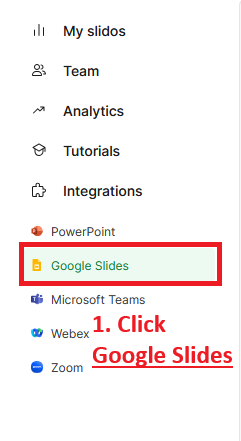
  1. Click "Goggle Slide," located on the left side of the screen under "Integrations."  
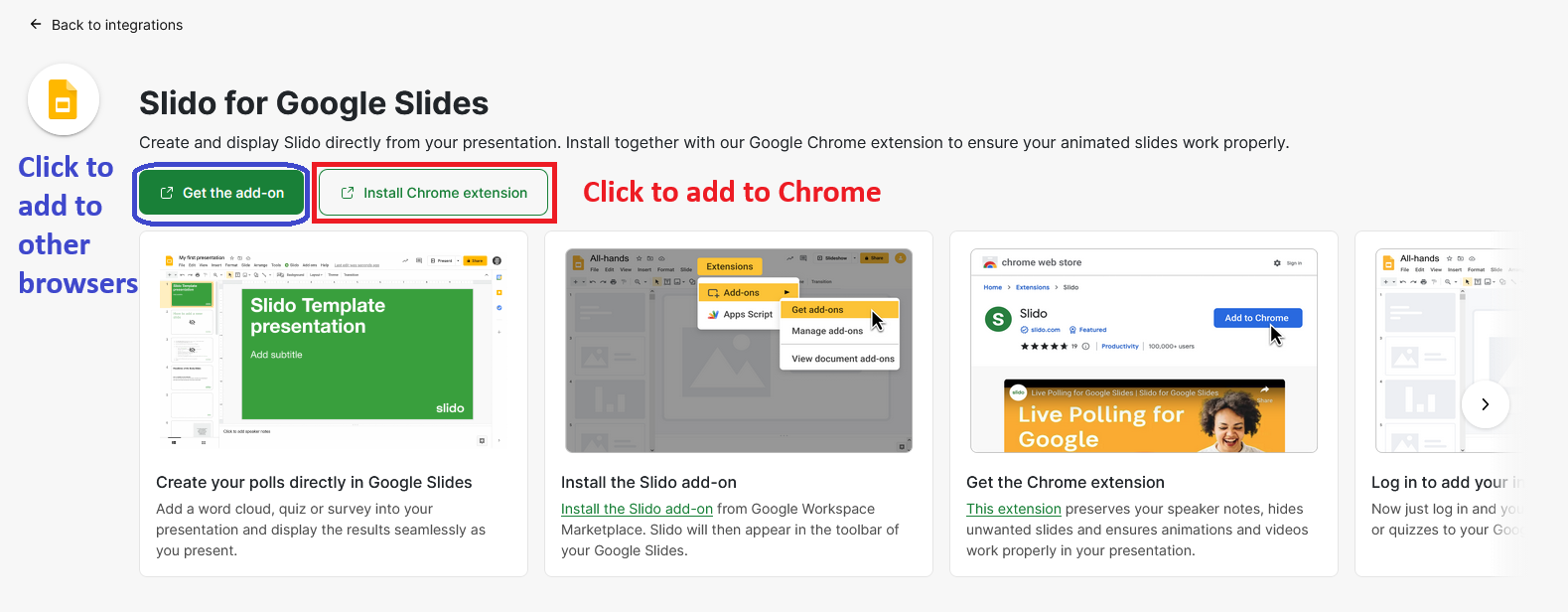
  2. To add Slido to Google Chrome click "Install Chrome extension." OR To add Slido on other browser by selecting "Get the add-on."  
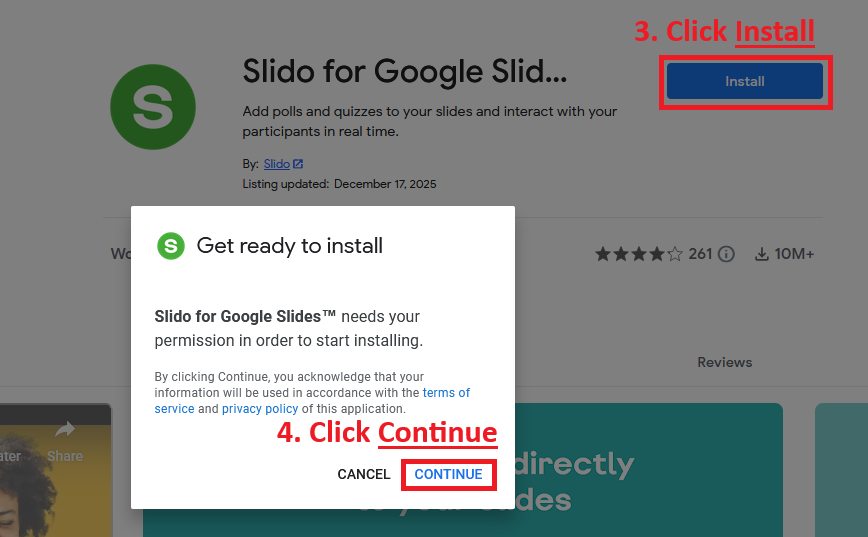
  3. Click "Install" 
  4. Click "Continue"                    
  5. Check the box that says "View and Manage the Google Slides presentations..."  
  6. Click Continue                                                                                                                
  7. Click Done   
Create Slido Activites 
  1. Open a google slide deck 
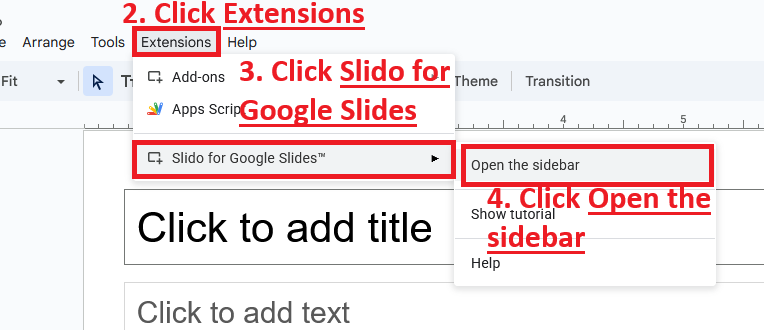
  2. Click "Extensions," located in the upper-left.
  3. Select "Slido for Google Slides"
  4. Select "Open in sidebar"                  
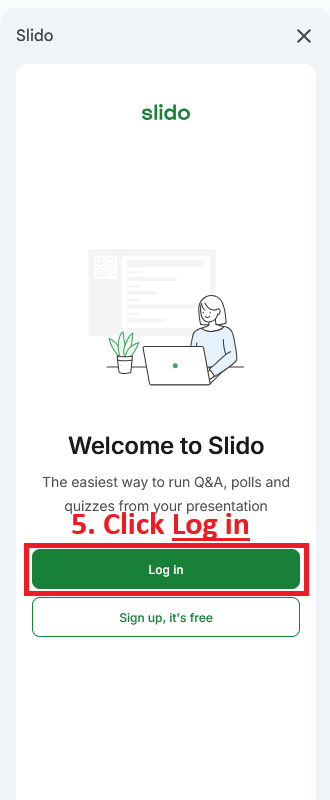
  5. Click "Log in"                                                                                                      
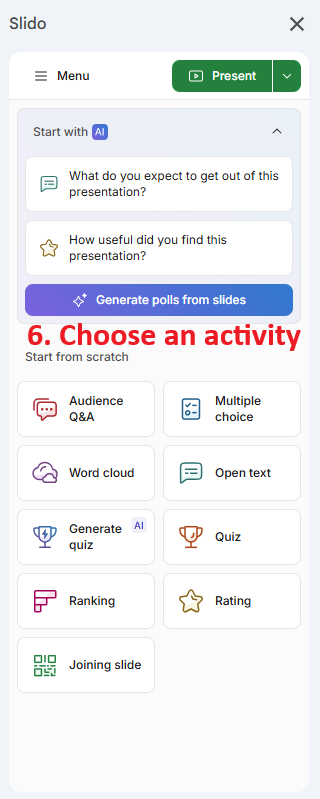
  6. Choose an activity                                                                                                                                                                     
  7. Edit activity 
  8. Click "Add to presentation"                                                                               

Note: The full activity will only appear in presentation mode. In edit mode the slide with the activity will only show the question